Making the complex, simple
Drumline Designer is a very powerful app with several features for writing music for drumline. At a first glance it can be pretty overwhelming, so here's a breakdown to make things more simple.
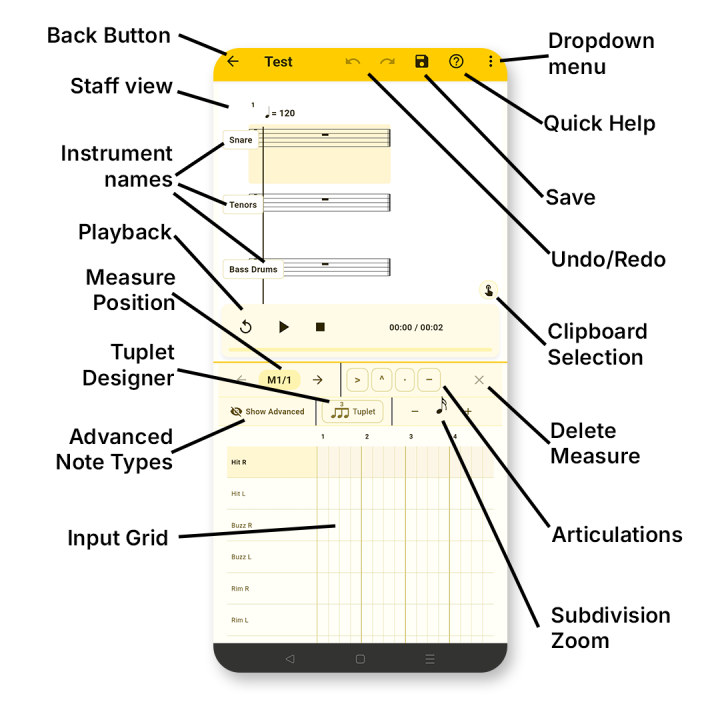
Back Button
Return back to the home page.
Staff View
The staff view is where you can see your notation come to life. As you enter notes into the input grid, the staff view will start populating each staff with notes, rests, articulations and other symbols relating to the music. You can pan in all directions by dragging your finger across the view. You can also zoom in and out by pinching in and out. To select what measure and instrument you'd like to edit, simply click on the corresponding measure and instrument to begin input. You can also tap and hold on a measure to create a 1-bar repeat.
Instrument Names
The name of each instrument corresponding to the staff it's next to.
Playback
Playback of the project. The rewind button brings the playhead to the start of the piece, making it so you can listen from the beginning. Play/Pause buttons play and pause the audio, stopping in the middle of the measure. The stop button brings the playhead back to where the playback started. The progress and duration are based on where the playhead started, meaning starting halfway into the project will make the audio time different.
Tuplet Designer
The tuplet designer instantly creates standard eighth note triplets upon tapping. You'll then be prompted to tap on the grid where you'd like the tuplet created. Tuplets can be created anywhere, so make sure you tap the start of the beat if you'd like tuplets right on the beat.
If you tap and hold the button, the tuplet designer pops up where you can set how many of what note length you'd like inside of how many normal notes. For instance, the standard eighth note triplet is 3 eighth notes within 2 eighth notes. It's up to your judgment to make tuplets that are easy to read and make sense. Having 3 eighth notes within 1 whole note may confuse the performer. You can also set the tuplet bracket to show the ratio in the staff view by checking "Show ratio."
Advanced Note Types
Selecting this will add more note types in the input grid. These not types are less common.
Input Grid
The input grid is the section where you can add notes into your music. Simply find the note type you'd like to enter on the left side and then add the note into the grid. Notation will automatically populate inside the staff view. Tapping and holding the grid creates a quick select where you can add articulations, tremolos, or turn the note into a grace note.
The grid can be panned by dragging their finger across the screen and can be zoomed in and out via pinching.
If you scroll to the bottom of the input grid you get more options, such as dynamics, tempo, text and more. Read the dedicated input grid tutorial to learn more about the input grid.
Dropdown Menu
The dropdown menu allows for a few more options, including the settings menu, where you can change settings about the project, instruments, where you can add/delete instruments to the project, edit info, where you can change the project information and the export menu, where you can export the project in several different ways. Read the dedicated export tutorial to learn more.
Quick Help
Quick help brings up a small window that gives you some help on each feature of the program.
Save
Saves the project
Undo and Redo
Reverses or reinstates actions that were made to the project.
Clipboard Selection
Clipboard selection allows you to select notes across several instruments, letting you copy and paste the selection. Pasting is done by first selecting notes, tapping copy, then tapping paste and tapping where in the score they'd like the music pasted to.
Delete Measure
Deletes the current measure
Articulations
Equips articulations onto newly added notes in the input grid. The articulations are shown on the staff view.
Subdivision Zoom
Allows you to switch between entering quarter notes, eighth notes, sixteenth notes, thirty-second notes, and sixty-fourth notes.